


How to build a prompt context
Build a prompt context from homologs, curated examples, or saved prompts, and choose sampling settings suited to your protein design goal.
A prompt is an input that directs the model to produce the desired protein sequences. It is made up of two components, a context and a query. This guide will show you how to build a context to guide retrieval-augmented models like PoET-2 toward a protein family or a curated set of examples with the desired characteristics.
For background, see the concepts page on Prompt — Context. Explore a specific usage example in the tutorial on Building a prompt context. To specify position-specific constraints instead, refer to How to build a prompt query.
Before starting
-
Decide on a goal for building the context. This could be:
-
Representing a protein family, for example homologous enzymes which perform a similar class of reactions
-
Focusing on a subfamily, for example affinity matured antibodies from a germline, or
-
Providing curated examples, for example scaffolds that contain a similar structural motif.
-
-
Have at least one of the following:
-
a seed sequence
-
an existing multiple sequence alignment (MSA)
-
a curated collection of sequences or structures, or
-
a saved context.
-
Setup
Choose a source that represents the intended sequence space:
-
New MSA from a seed: Search for homologs when a representative seed sequence is available but no suitable sequence set or MSA is available yet. Sampling selects examples from the resulting MSA to build the context supplied to PoET-2.
-
Existing MSA: An MSA is an alignment of related sequences. We can build a prompt by sampling from an alignment that already covers the intended protein family and domains. This route is recommended when a well-curated MSA is available.
-
Custom examples: Create a context directly from selected sequences or structures when specific examples should guide the model. An MSA is not required for this route.
-
Saved context or system prompt: Reuse an existing context or a System Prompt when its examples already suit the task. This also keeps comparisons between analyses obtained with the same context-prompted model consistent.
Under context definition, select Create New Prompt – which then allows you to upload an MSA or perform a homology search to build an MSA, or select from a list of existing project prompts or system prompts. Refer to context source options.
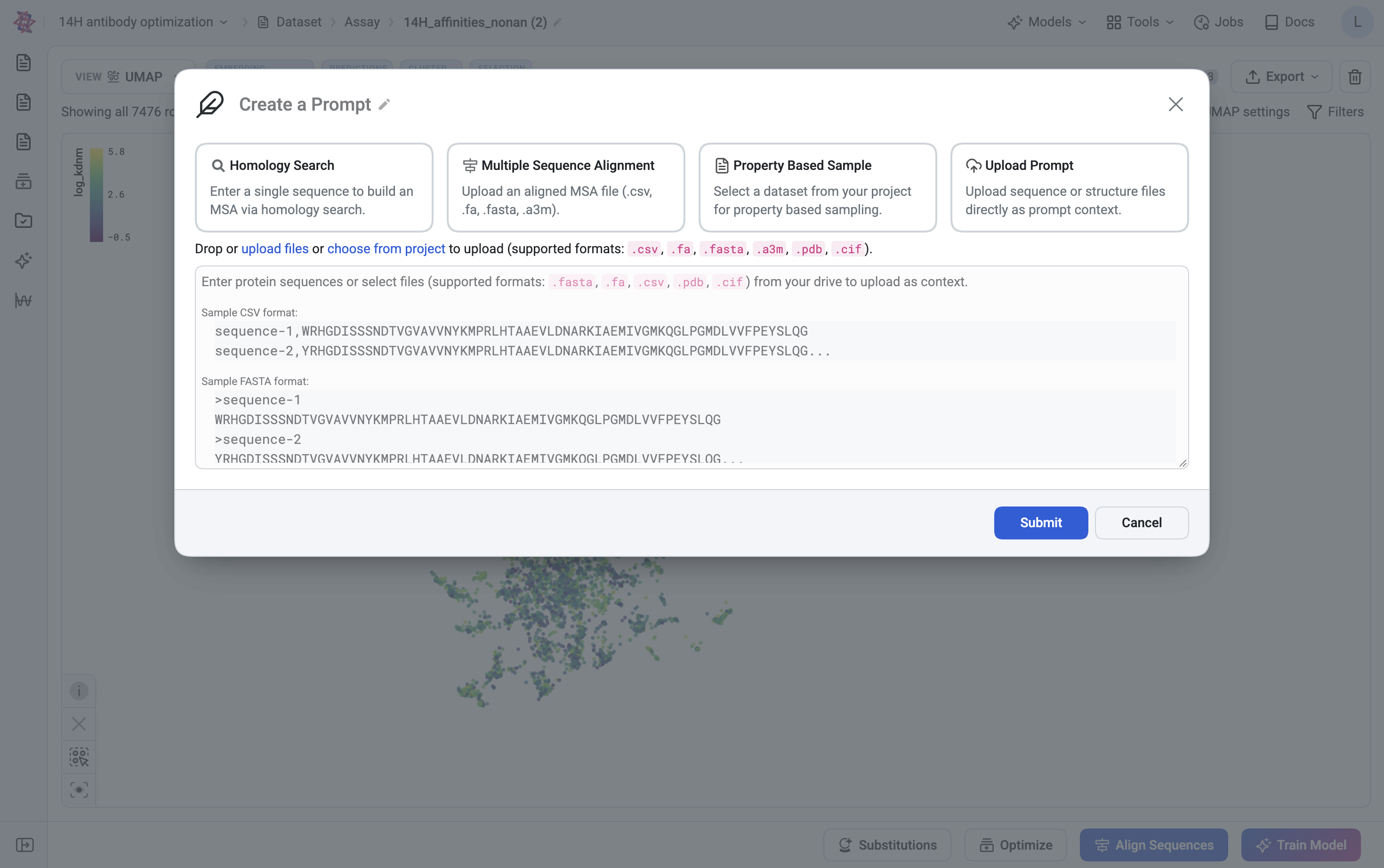
Prepare the source examples
Build a new MSA from a seed
Select a seed that represents the intended family and sequence region. Remove unrelated tags or domains when they fall outside the task. Review the resulting homologs before sampling a context.
Select Homology Search and run homology search using a single seed sequence.
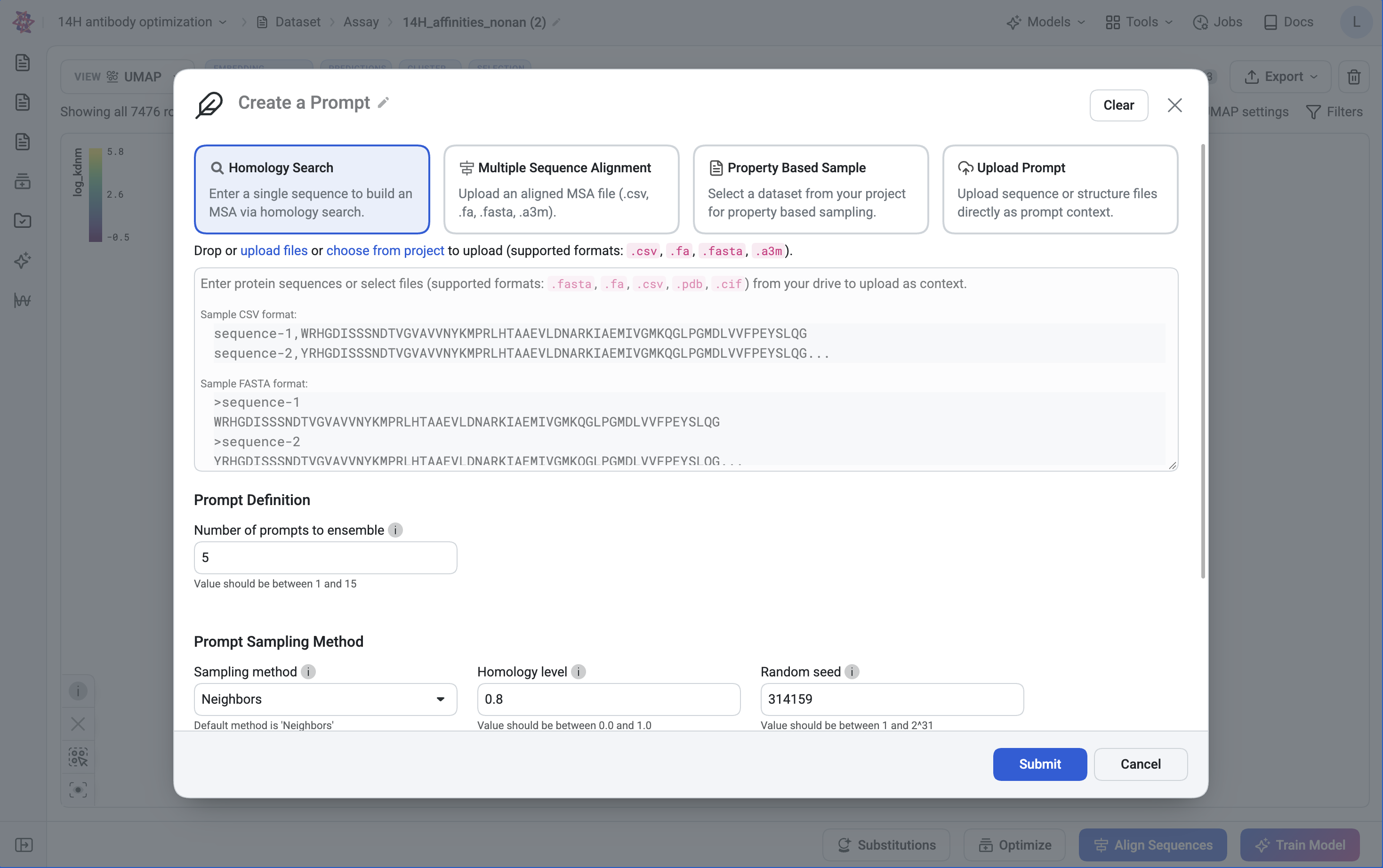
Use an existing MSA
Inspect the alignment for fragments, excessive gaps, unrelated domains, and excessive duplication, and filter it to improve the MSA quality, if needed. Check that the examples cover the region of interest.
Select Build From MSA, then choose an existing alignment or upload an MSA file in .fasta or .a3m format.
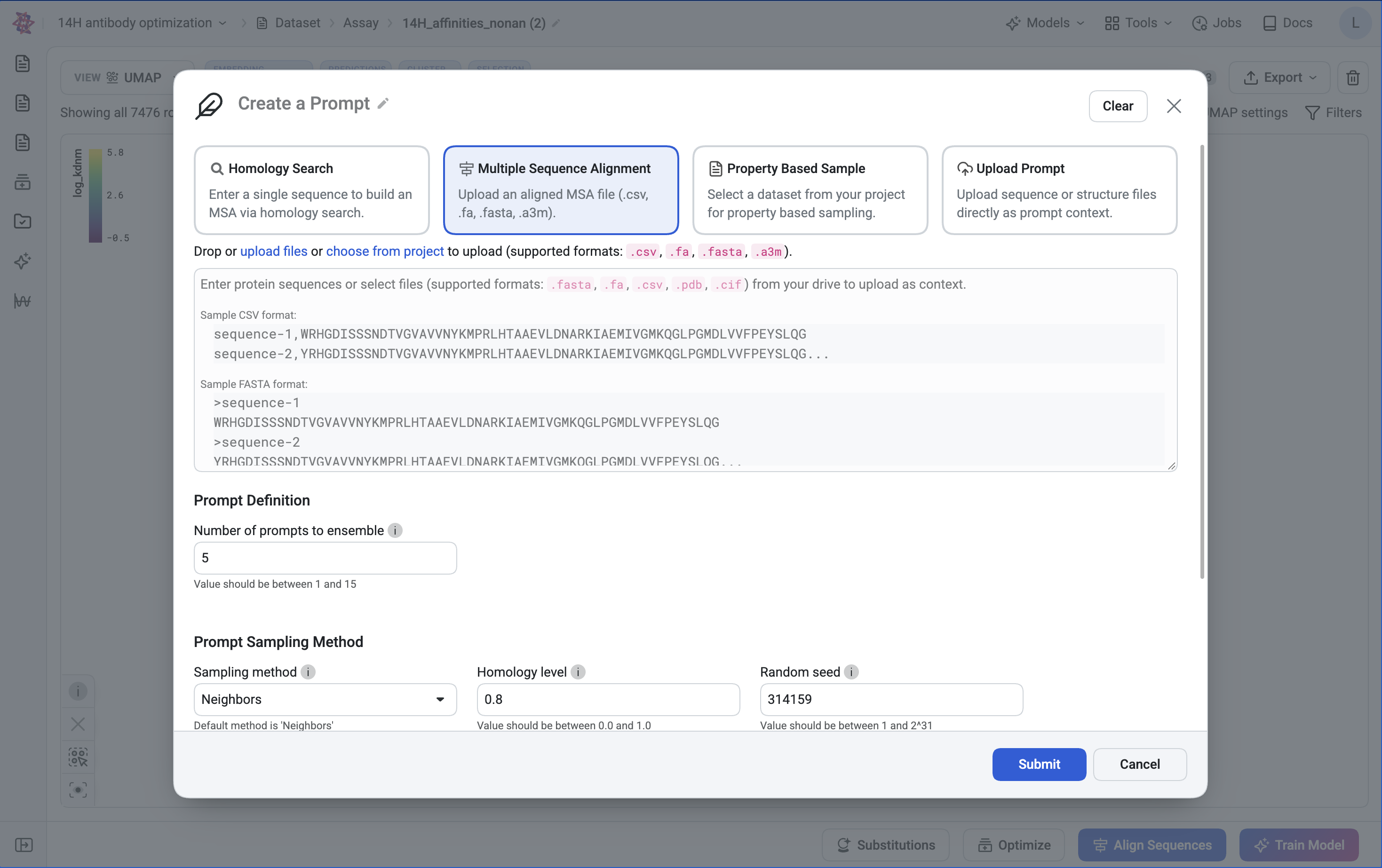
Create a context from curated examples
Select examples with a clear reason for inclusion. For a narrow subfamily goal, avoid mixing in proteins with incompatible functions or architectures. Remove accidental duplicates that would overrepresent particular examples. Examples can include sequences, structures, or a combination of both.
Select Upload Prompt, then upload sequence or structure files directly. For structure files, select the intended protein chain.
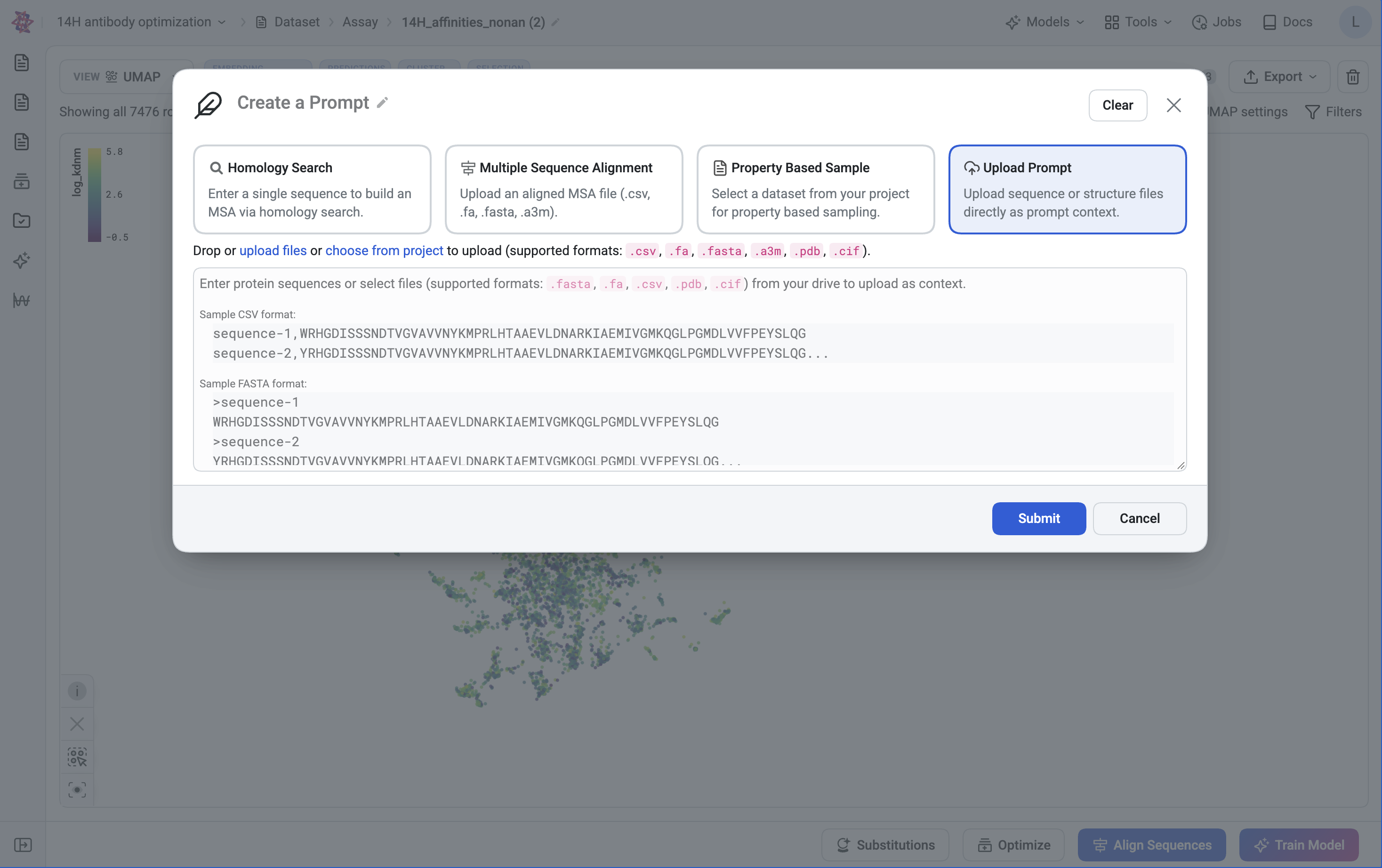
Reuse a saved context or system prompt
Check that the context represents the intended family, domain arrangement, and biological scope. Reuse it when those choices remain appropriate.
When setting the prompt context, instead of selecting the option “Create new prompt”, select one of the existing prompts that were previously created in the project, or a relevant system prompt instead.
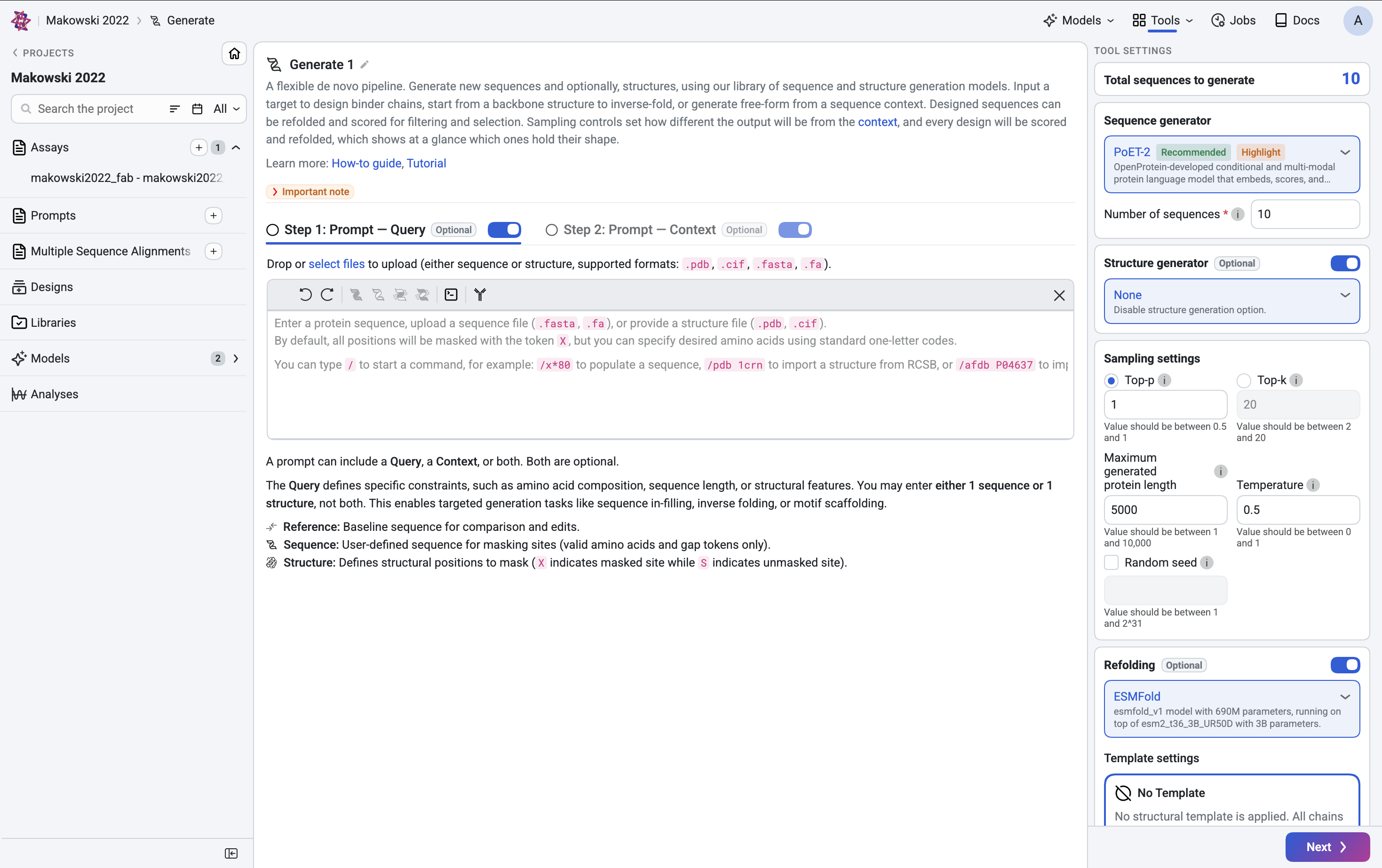
Build context by sampling from MSA
Set sampling method
To create the context prompt from an MSA, the platform offers several methods of sampling from the MSA sequences:
-
Neighbors: Downweight sequences with many similar neighbors. Use this to improve representation across an unevenly sampled family. This is the recommended method for reducing the influence of redundant groups,
-
Random: Sample entries uniformly without replacement. Use this when the pool’s existing composition is intentional; abundant groups can still dominate.
-
Top: Select entries in MSA order. Use this when the ordering is deliberate. Do not assume the first entries are the most biologically relevant.
Sampling determines the representation of the available pool in the prompt. It cannot supply examples missing from that pool.
Configure Prompt Sampling Method.
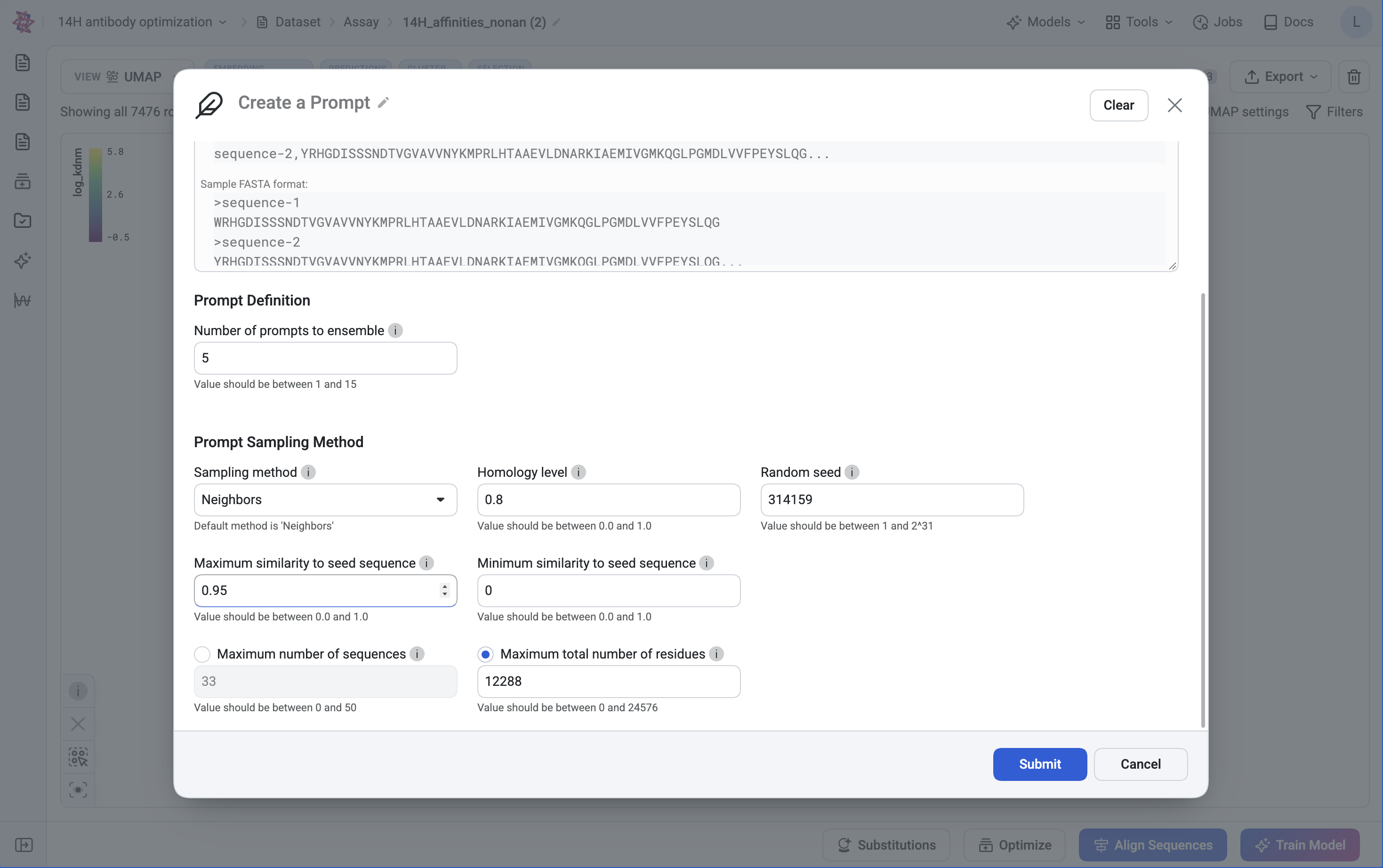
Set sequence similarity filters
Start with the documented defaults, then adjust after inspecting an initial sample:
-
Minimum similarity to seed — 0.0: Raise this to exclude distant sequences and focus on the local sequence space closer to the seed. A higher threshold can remove useful family diversity.
-
Maximum similarity to seed — 1.0: Lower this to exclude very close matches. This can reduce near-seed redundancy but may also remove relevant examples.
-
Homology level — 0.8: Set the threshold used to identify neighbors for redundancy weighting. This controls similarity among examples under Neighbors; it does not set their similarity to the seed.
Avoid tightening the filters so far that few or no examples remain.
Configure Homology level, Minimum similarity to seed sequence, and Maximum similarity to seed sequence.
Set context size and ensemble count
Choose a size limit:
-
Maximum total number of residues: Limit the cumulative sequence length. Prefer this when example lengths vary. This must be less than 24577.
-
Maximum number of sequences: Limit the number of examples. Use this when a particular count matters. This must be less than 100.
Specify either parameter, not both. Treat these as upper limits, as filtering may leave fewer examples than requested. Start with a moderate budget – the default of 12288 maximum total residues works well. Increase it to include additional relevant examples. Note that additional near-duplicates may add little useful information.
Use 3–5 ensembled prompts for routine analyses where averaging across context samples is useful. An ensemble of up to 15 prompts is supported. More replicates can reduce dependence on a single sample, at the cost of additional computation.
Set Maximum total number of residues or Maximum number of sequences, and Number of prompts to ensemble.
Sample the context
Apply the selected settings to the prepared MSA. Set a random seed when reproducing sampling or comparing alternative settings against the same source pool.
Create the prompt from the MSA using the configured sampling settings.
Review and save the context
Inspect the actual examples selected, including every ensemble replicate. Check for:
-
Empty or unexpectedly small samples.
-
Overrepresentation of a single subgroup.
-
Fragments or unrelated domains.
-
Loss of examples important to the goal.
If the context is too narrow, relax the minimum similarity filter or broaden the source pool. If it contains unsuitable examples, curate the pool or tighten the relevant filter.
Review the context preview and give the saved prompt a descriptive name. Record its source and intended use.