
Tutorial: Select hits from an antibody NGS discovery campaign#
Immunization-based antibody discovery campaigns routinely yield thousands of candidate sequences via next generation sequencing (NGS). However, not all sequences have high affinity, and many sequences are redundant, e.g., they may be nearly identical to one another, or may bind the same epitope. In this tutorial, we will use OpenProtein.AI to select a diverse subset of high affinity antibodies from an antibody NGS discovery campaign. This process, called hit selection, allows us to achieve the same discovery outcome without assaying every sequence, substantially reducing both time and cost.
In this tutorial, we will select hits from the KV7019 NGS dataset (Baker et al., 2024), which contains sequences from a campaign targeting antimicrobial resistant Acinetobacter baumannii. The dataset contains 2,852 paired antibody sequences, from which we will select a diverse subset of 500 antibodies predicted to have high affinity.
Hit selection can be done on OpenProtein.AI in four steps:
Upload the NGS dataset as an Assay dataset
Predict the relative affinities of the sequences using PoET-2 Antibody NGS Enrichment
Select sequences using the Selection tool
Export the selected hits as CSV
At the end of the tutorial, we will have:
A CSV file containing the selection of 500 sequences, and their predicted relative affinities.
Before starting#
Download the preprocessed KV7019 NGS dataset located here. It is a CSV file with 2,852 paired antibody sequences and three columns:
ID: the identifier assigned to the antibody
VH: the heavy chain amino acid sequence of the antibody
VL: the light chain amino acid sequence of the antibody
Open a project to upload the dataset into. Learn how to create a project here.
Step 1: Upload the dataset#
In the left navigation panel of the project, click Upload next to Assay.
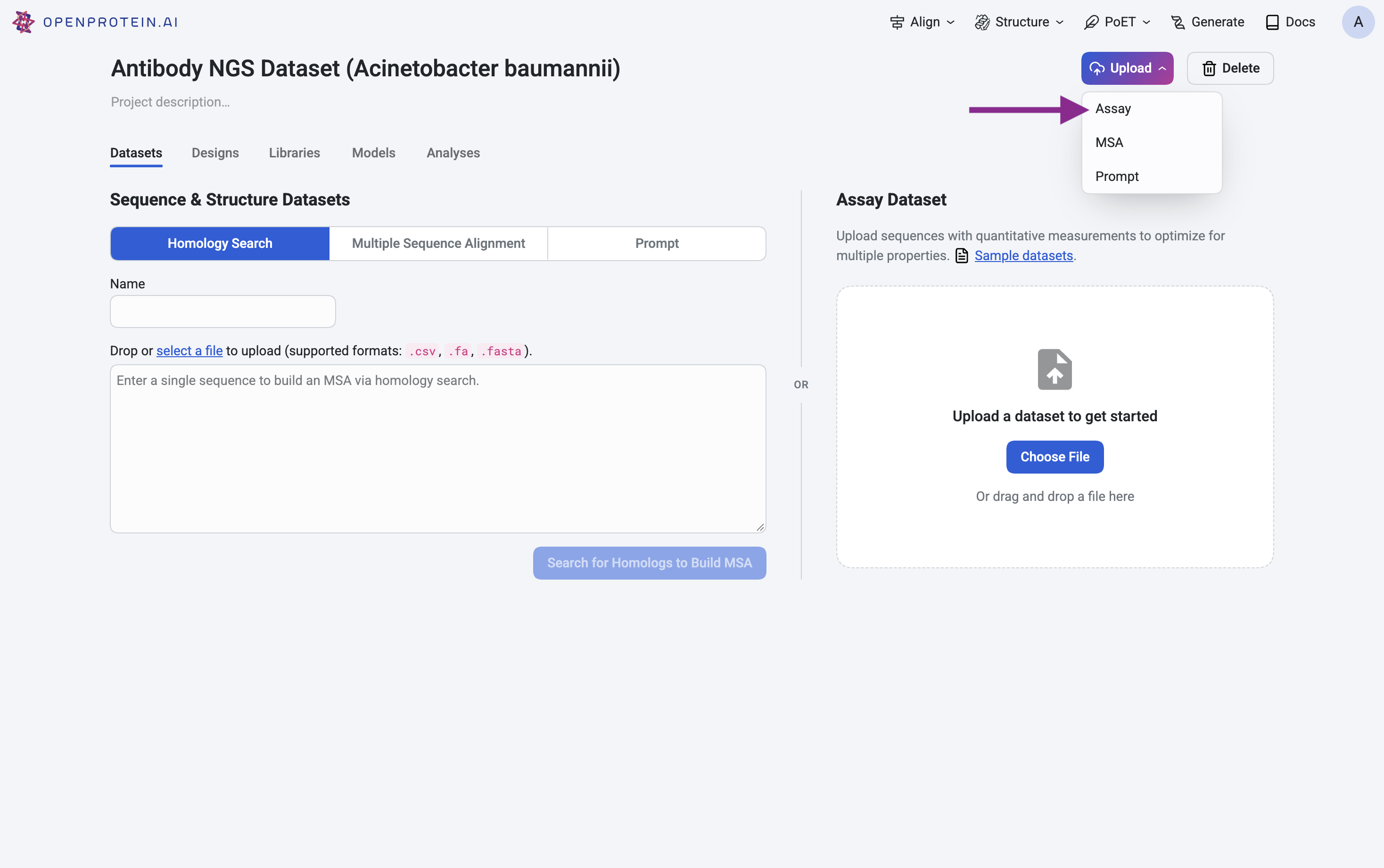
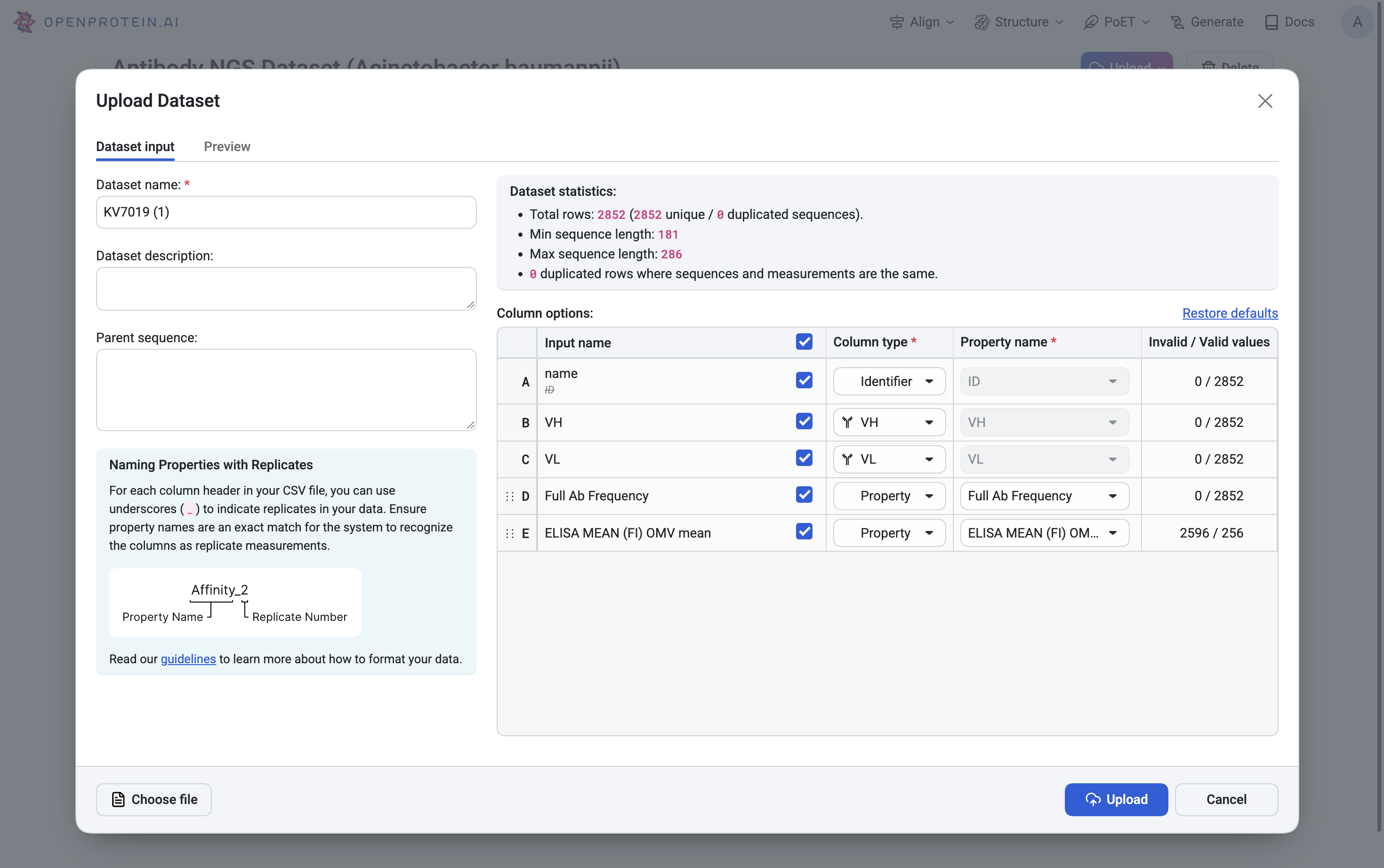
Select the KV7019.csv file and ensure all column types are assigned as follows.
Column name in the CSV |
Column type to be assigned on the platform |
|---|---|
ID |
Identifier |
VH |
VH |
VL |
VL |
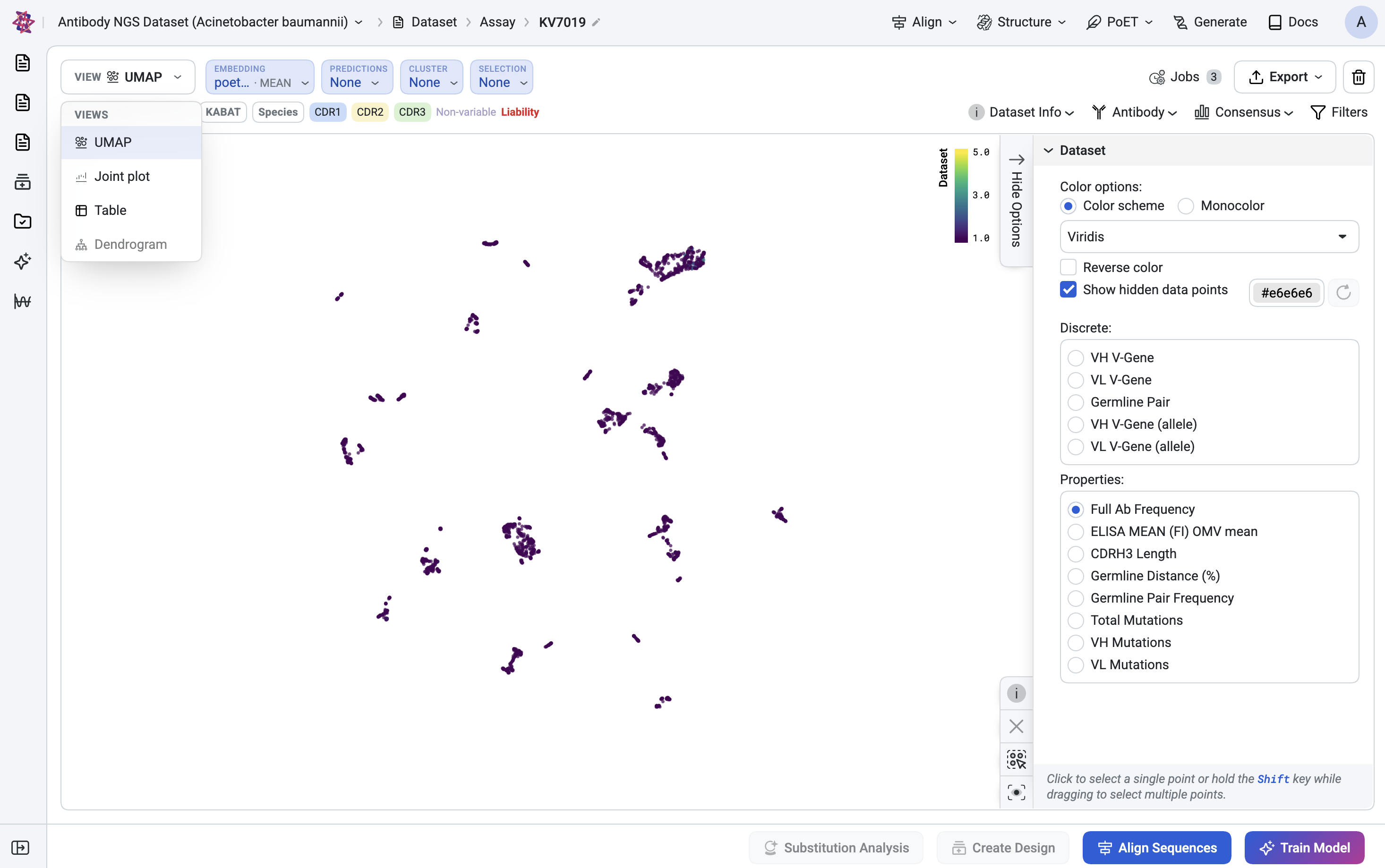
When the upload finishes, the dataset opens under Dataset > Assay > KV7019.
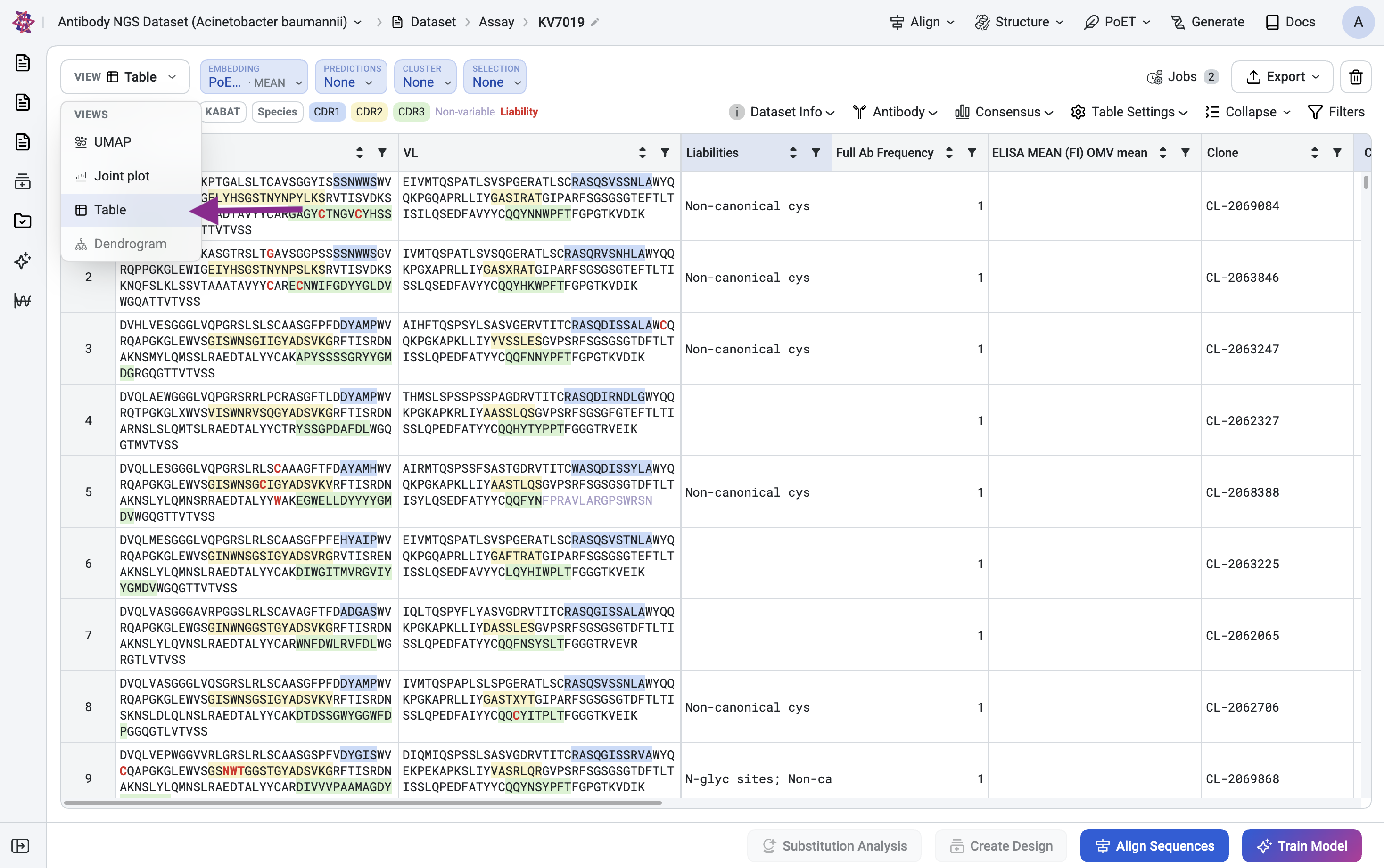
The dataset opens as a UMAP of the sequences. Use the View dropdown at the top left to switch between UMAP, Joint plot, and Table.
Step 2: Predict relative affinity with PoET-2 Antibody NGS Enrichment#
Before selecting sequences, we will first predict the relative affinities of the candidate antibodies by using a model to analyze their sequences. In the next step, we will use these predictions to steer the selection towards sequences with high affinity.
To predict relative affinity, we will use OpenProtein.AI’s PoET-2 Antibody NGS Enrichment model. In the toolbar, open the Predictions dropdown and click New prediction.
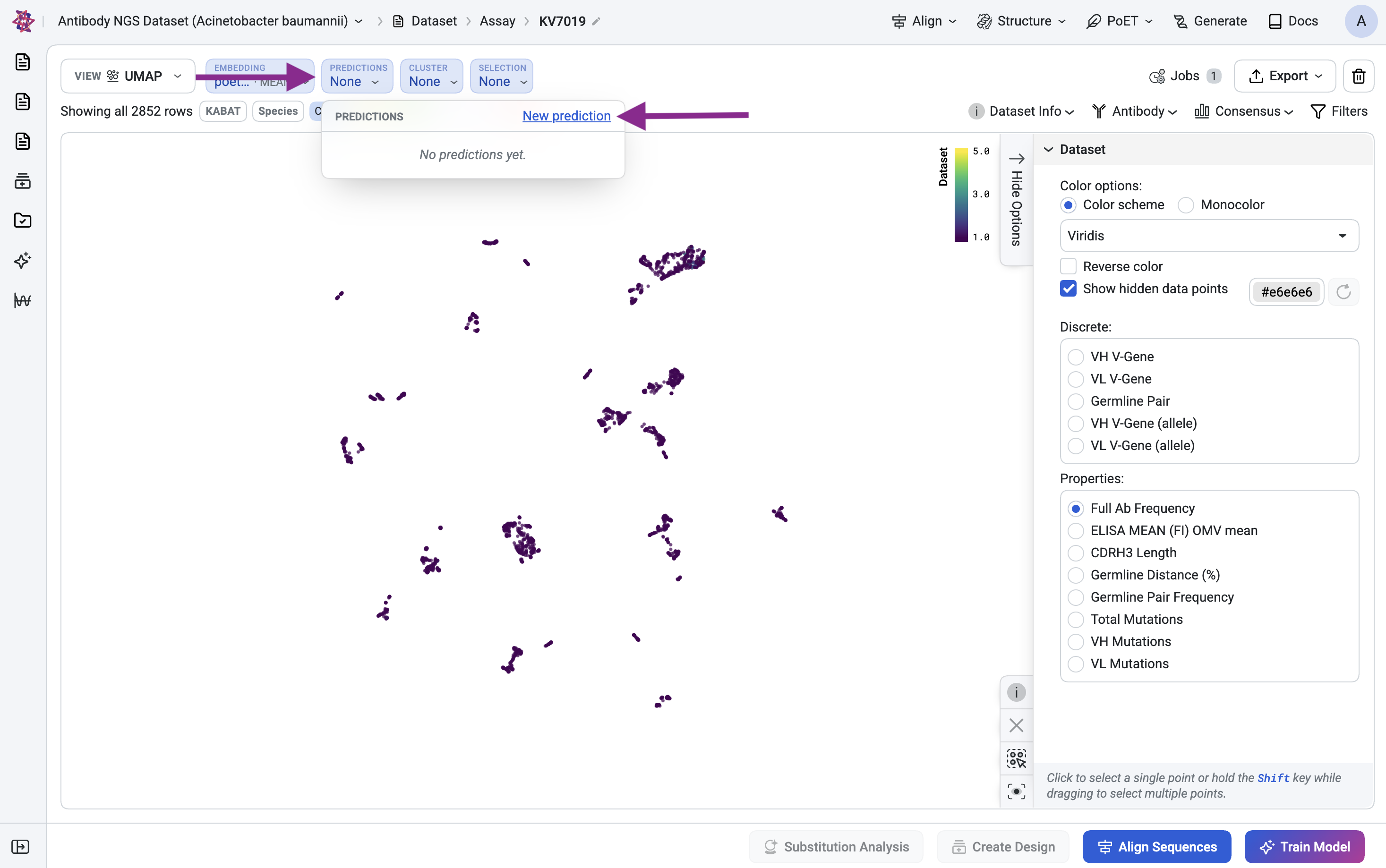
In the Create Prediction dialog, stay on Recommended for you and select PoET-2 Antibody NGS Enrichment.
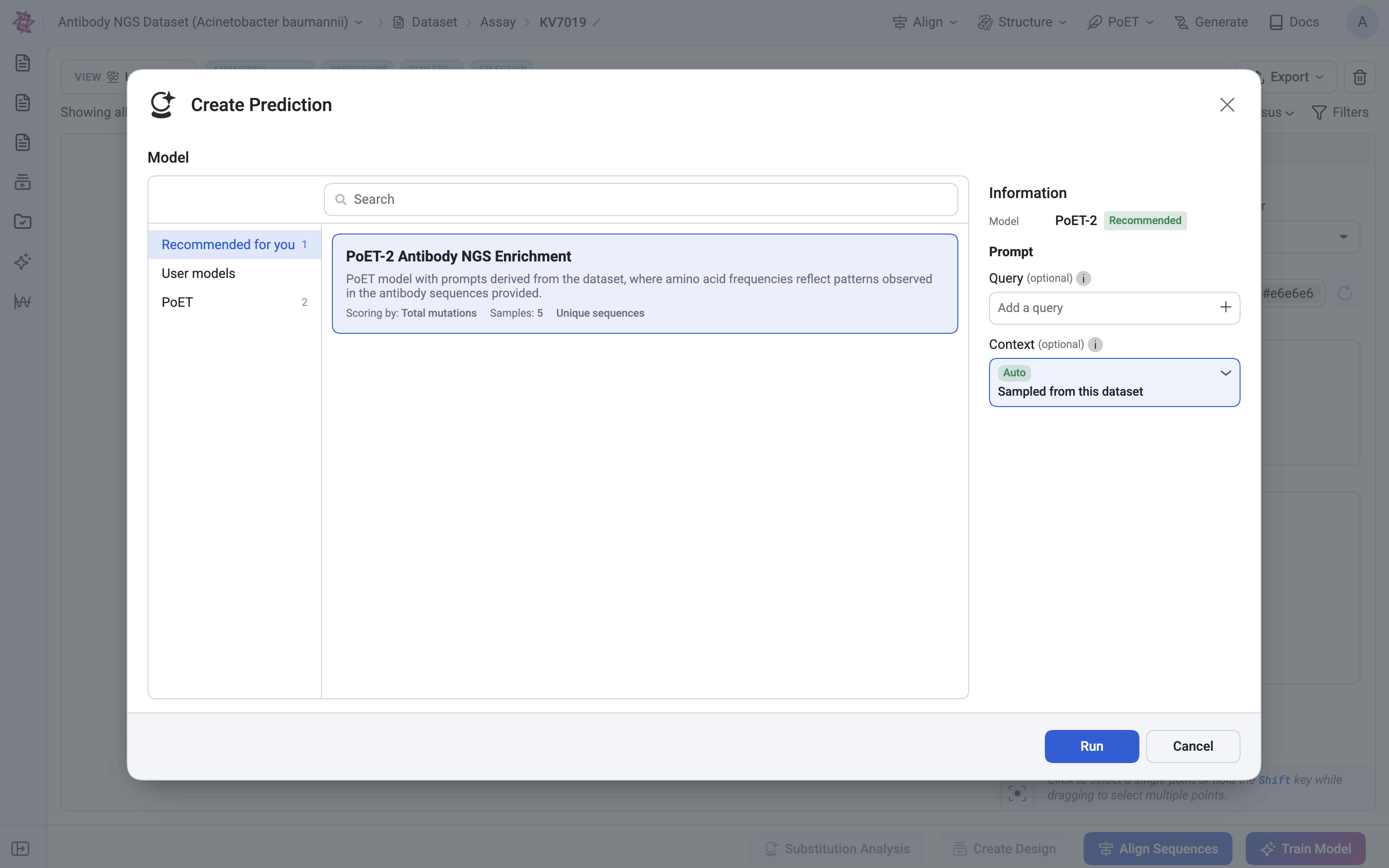
Leave Query empty. Leave Context on Auto, which samples sequences from this dataset.
Click Run. The dialog shows “Starting PoET-2 scoring” and closes. A banner above the table tracks the job, for example “PoET-2 Antibody NGS Enrichment – Pending”, and the Jobs count goes up by one.
Step 2b: Find the prediction column#
When the prediction finishes, the dataset gains a new column named after the prediction.
Open the View dropdown and choose Table.
Scroll right to the new column, PoET-2 Antibody NGS Enrichment.
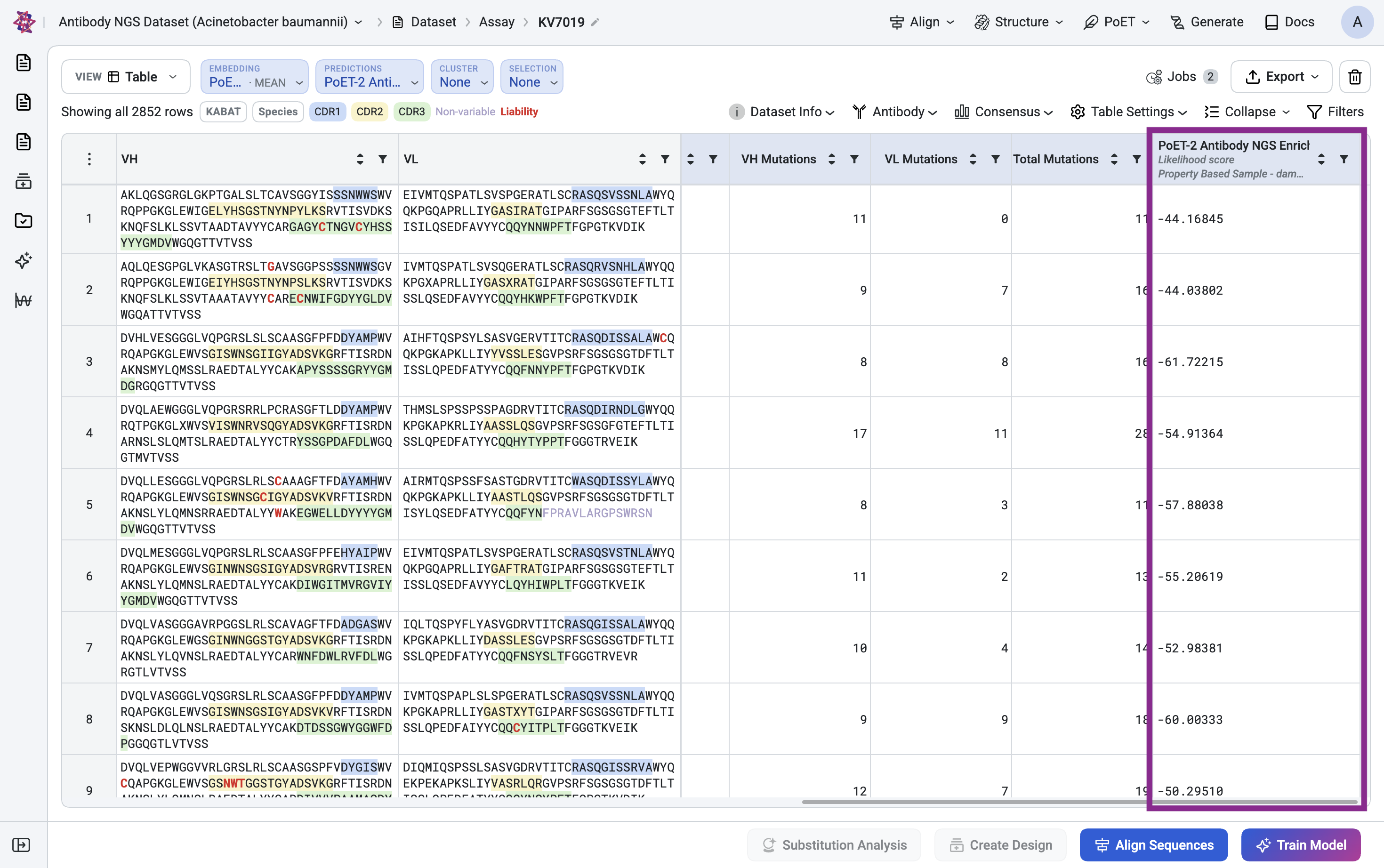
Each row now has a score. Higher values indicate higher predicted relative affinity. Selection uses this score in the next step.
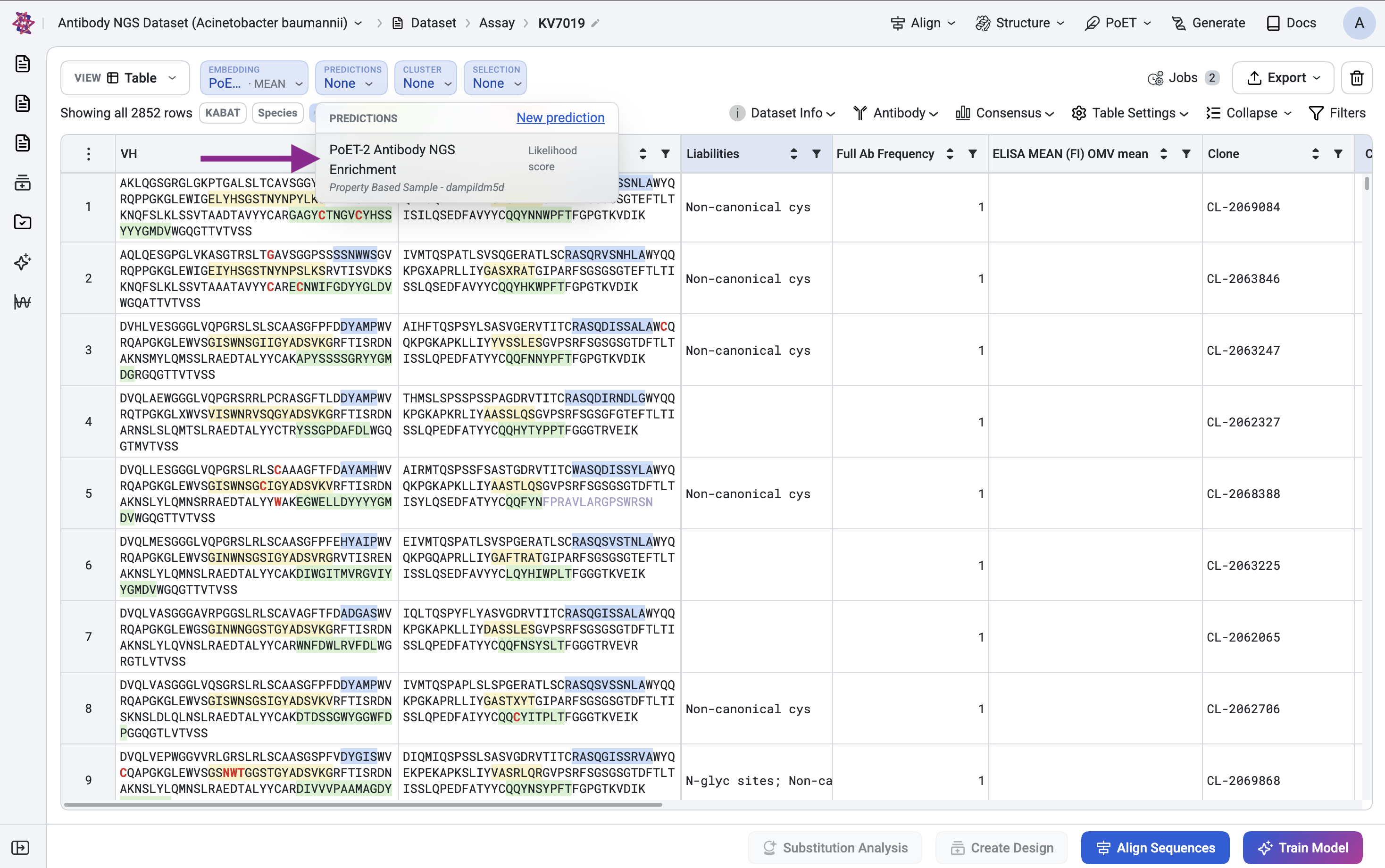
If the column is not shown, open the Predictions dropdown and select PoET-2 Antibody NGS Enrichment to display the scores.
Step 4: Select sequences using the Select tool#
Now use Selection to perform hit selection, i.e., select a subset of diverse sequences with high affinity.
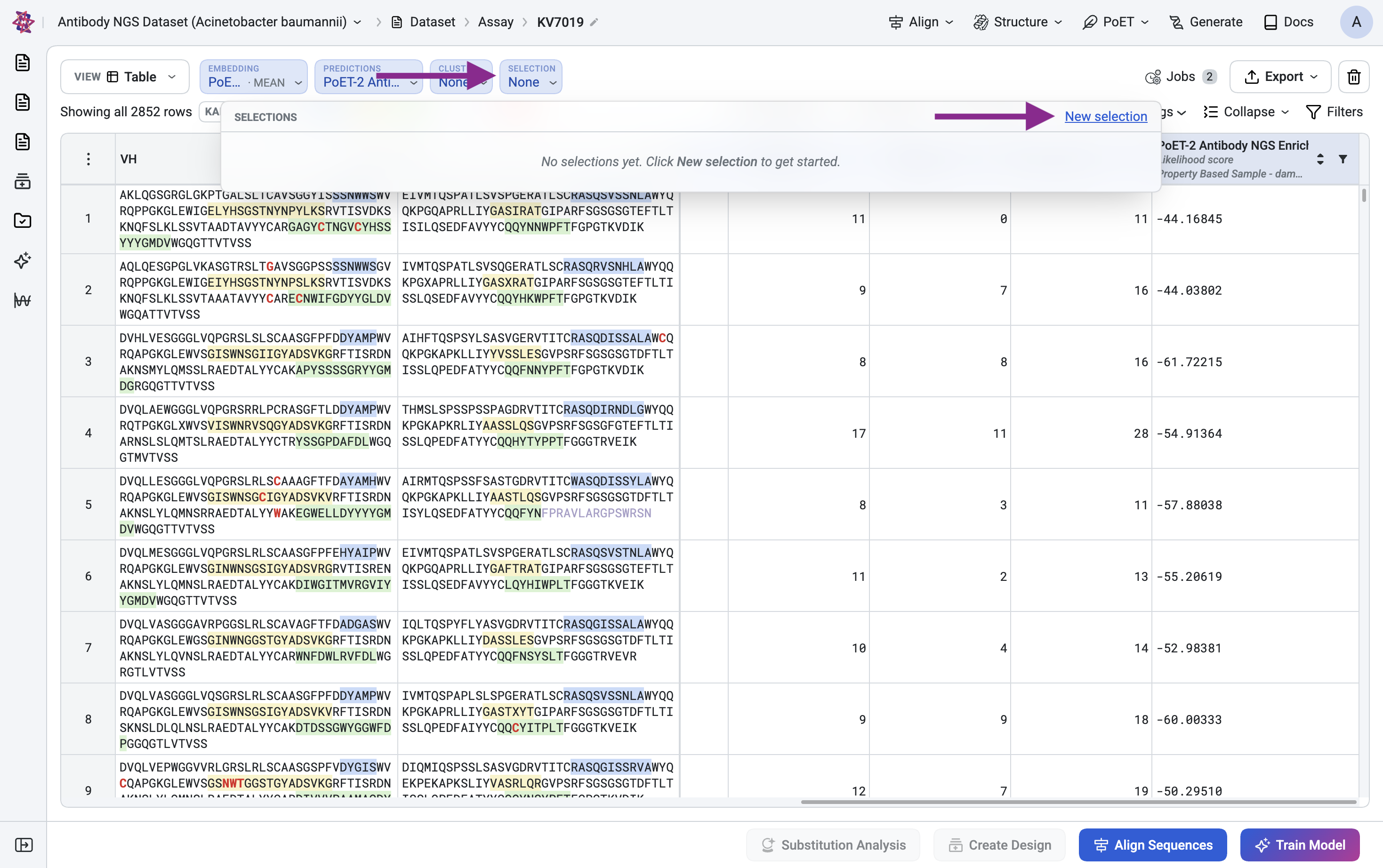
In the toolbar, open the Selection dropdown and click New selection.
Choose the sequences to select from#
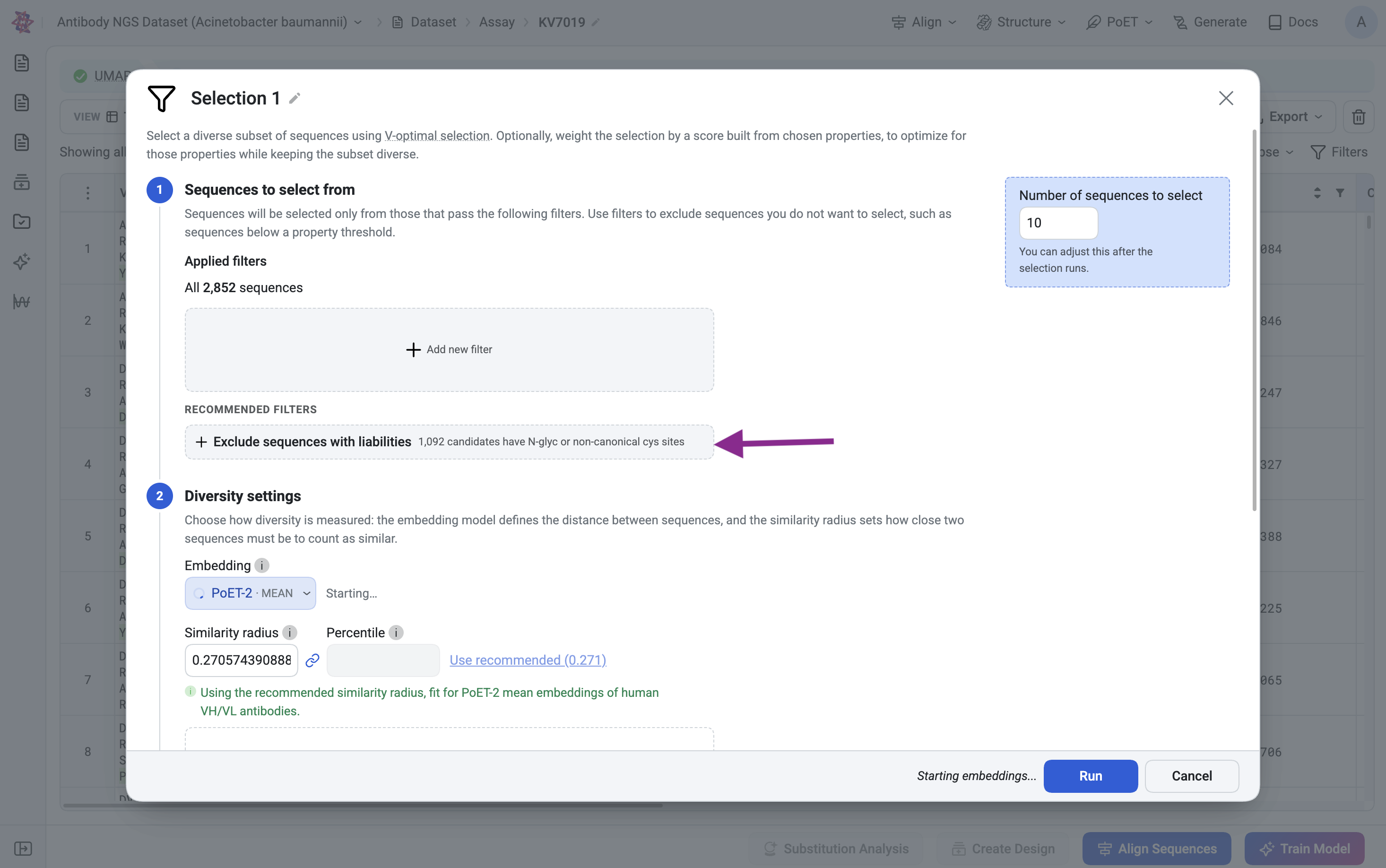
In antibody discovery campaigns, we often want to avoid selecting some sequences, such as sequences that are likely to have liabilities that reduce developability or manufacturability. Such sequences can be excluded from selection by adding filters. OpenProtein.AI automatically detects certain liabilities such as N-glycosolation and non-canonical cysteines, and allows filtering by these liabilities with a click of a button.
Under Sequences to select from, the applied filters read “All 2,852 sequences”.
Click Exclude sequences with liabilities. The button notes that 1,092 candidates have N-glycosylation or non-canonical cysteine sites. Once applied, the count reads “1,760 of 2,852 sequences”.
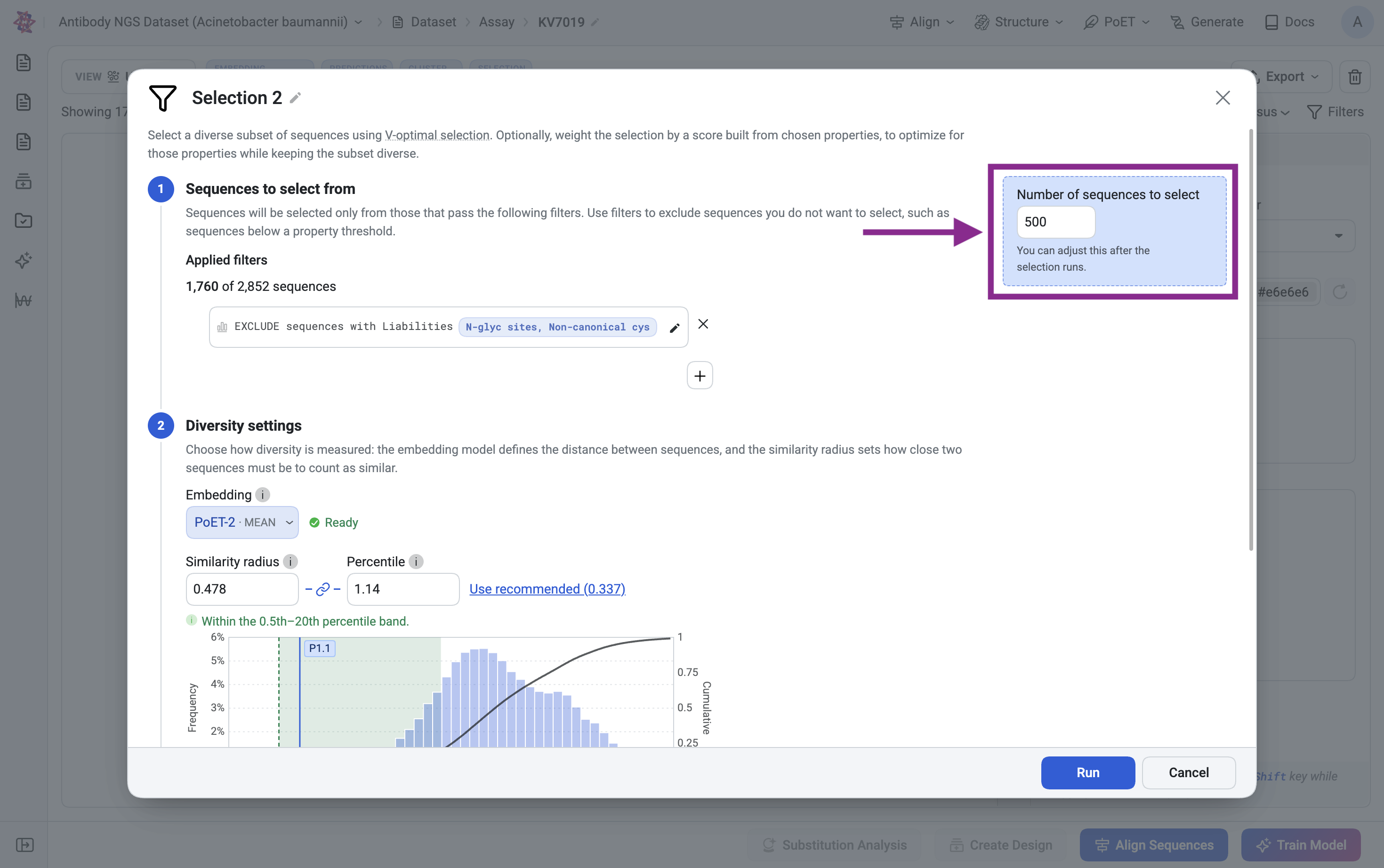
Set Number of sequences to select to 500. This can be adjusted after the selection runs.
Set diversity setting#
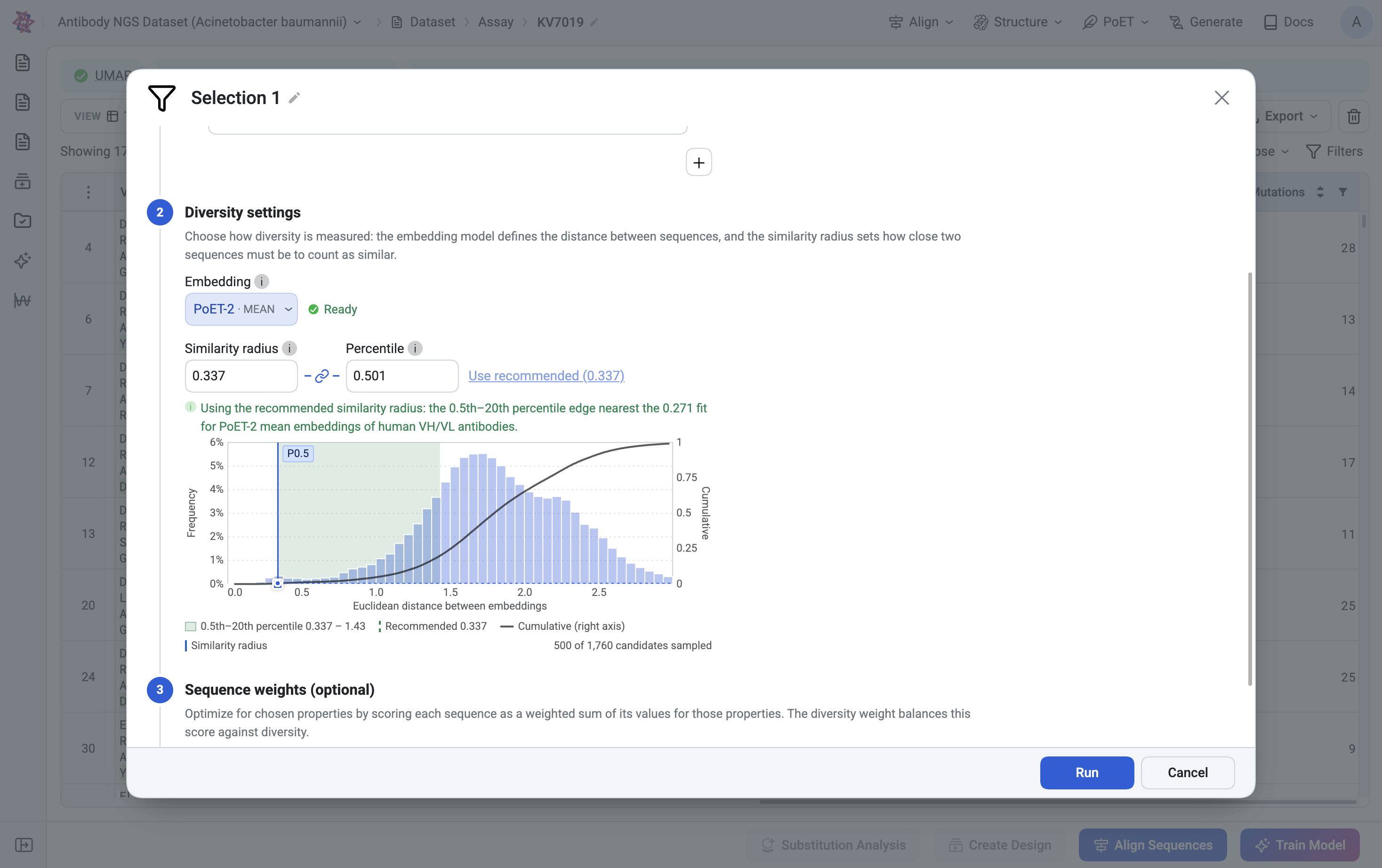
In order to select a diverse subset of sequences, we need to define how diversity is measured. This can be a fairly technical topic, but in essence, this means defining a “distance” between sequences, and a “similarity radius”, for which sequences closer than this radius are considered similar. Selecting a diverse subset then roughly amounts to selecting sequences that are further apart than the similarity radius.
We will define “distance” using the PoET-2 Antibody model.
Under Diversity settings, keep the Embedding model on PoET-2 · MEAN. Wait for the Ready status to see the distance histogram first.
Keep the recommended Similarity radius (0.337, which is the 0.501th percentile in this dataset).
Weight sequences by the predicted relative affinity#
Under Sequence weights (optional), open Score and choose PoET-2 Antibody NGS Enrichment · Likelihood score. This is the column created in Step 2.
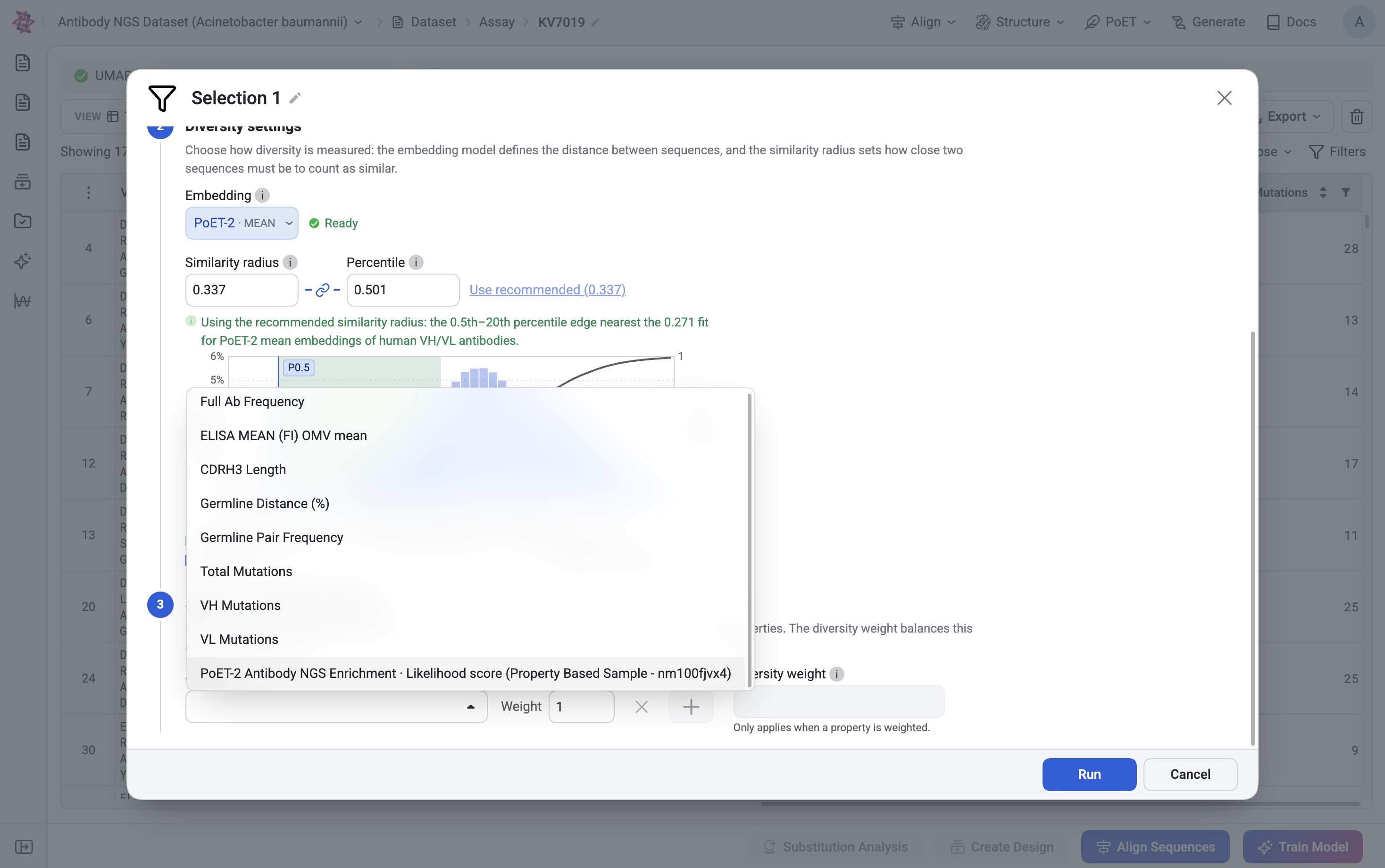
Keep Weight at 1.
Keep Diversity weight at 30. Higher values favor diversity over the score.
Check the line below the controls. It reads “Score = 1 × PoET-2 Antibody NGS Enrichment · Likelihood score”.
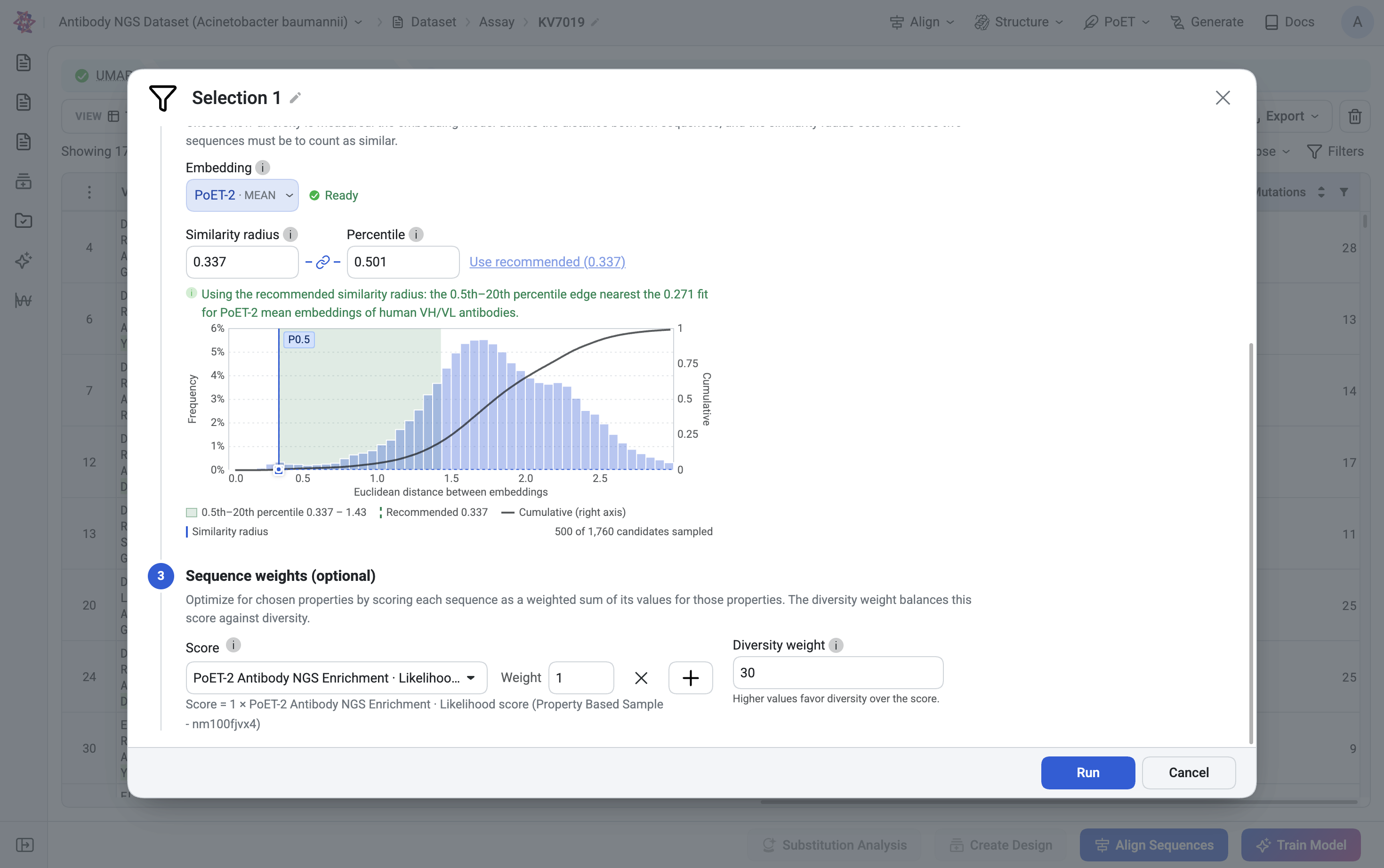
Click Run. The footer shows “Submitting selection job” and “Updating job metadata”, and a banner above the table shows “Selection 1 – Pending”.
Step 5: View the selection#
When the job finishes, the table will update and show only the selected sequences. In this example, you will see “Showing 500/2852 rows”.
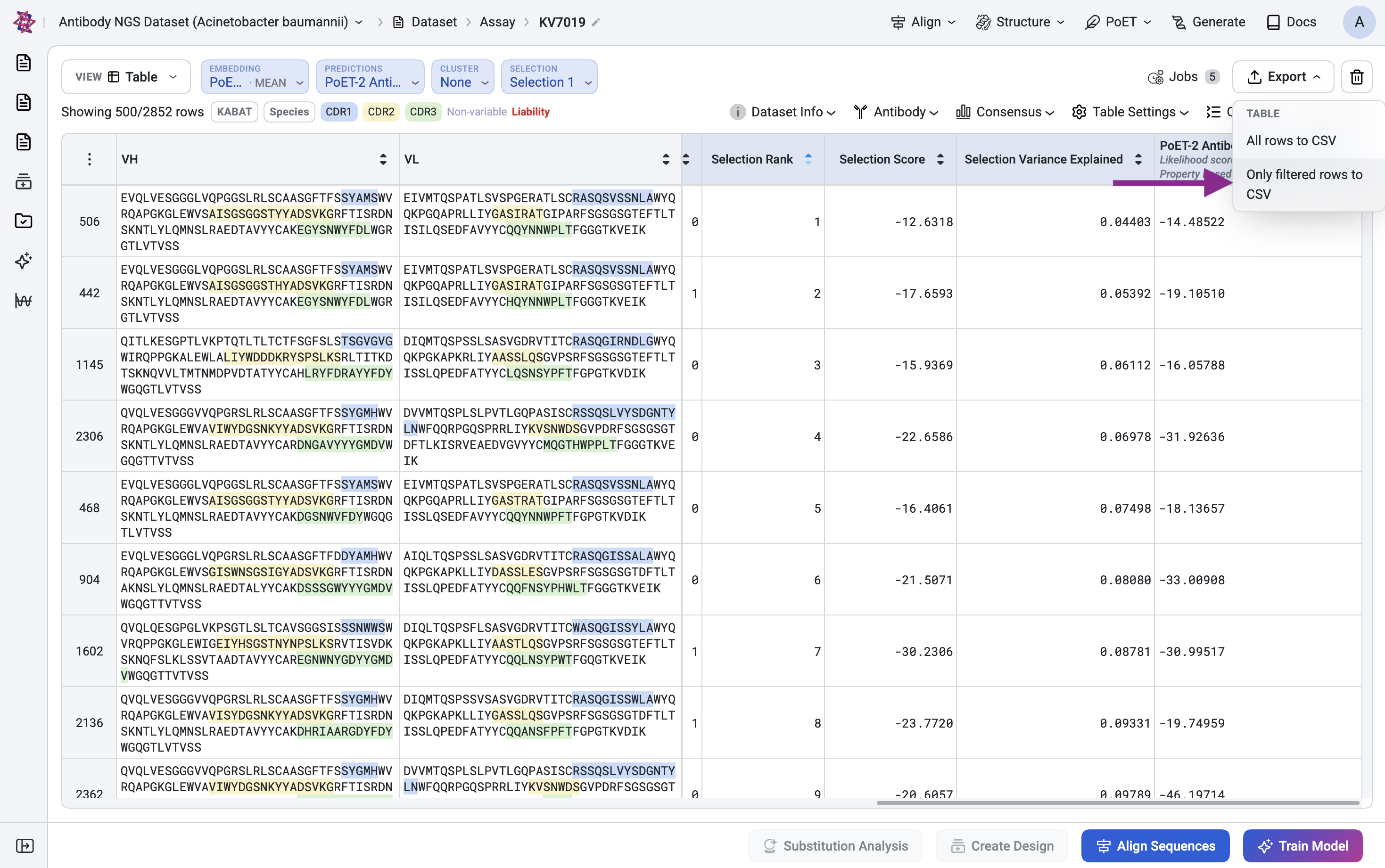
Scroll right to see three new columns: Selection Rank, Selection Score, and Selection Variance Explained. The table is sorted by Selection Rank, so rank 1 is first.
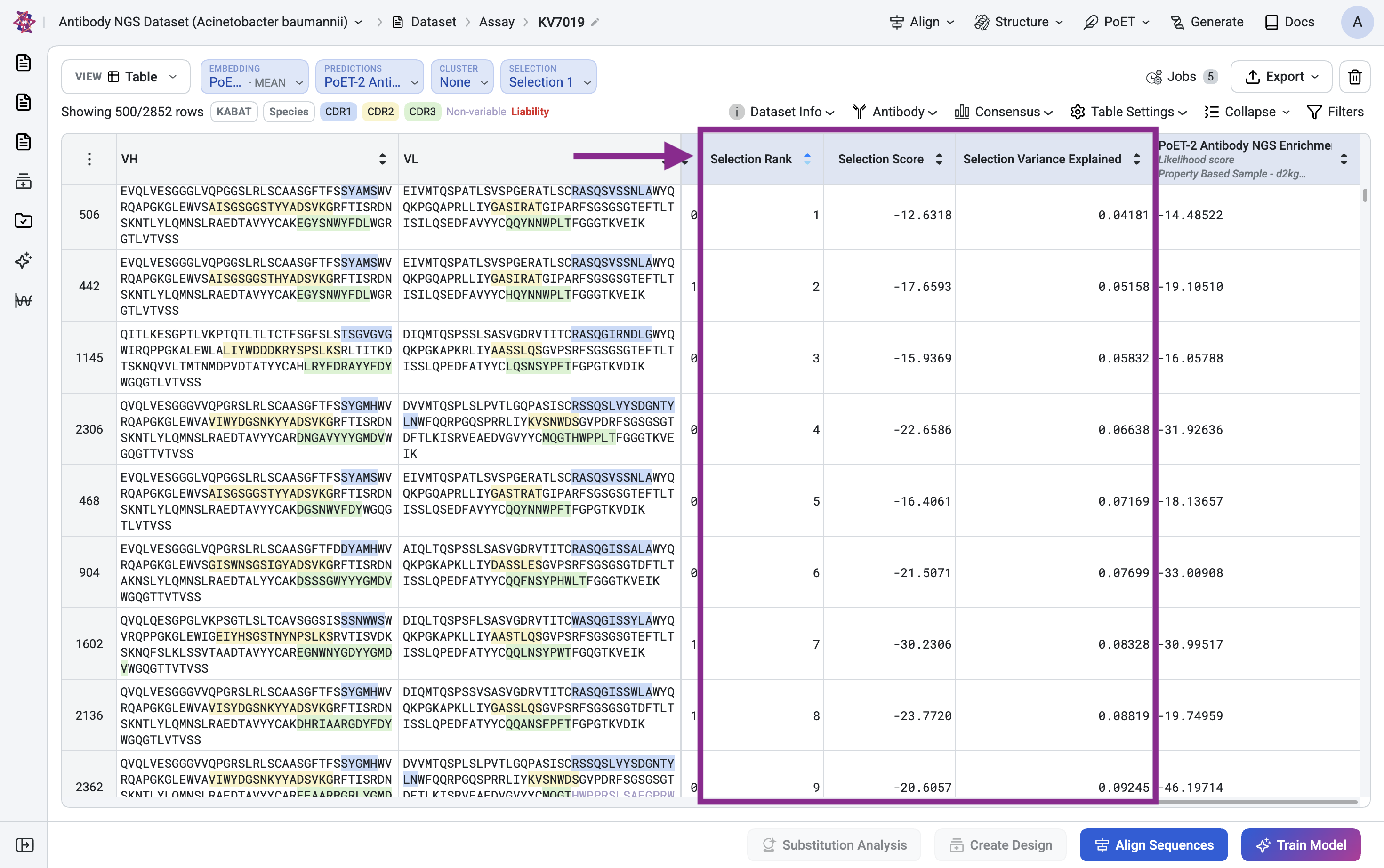
Additional information about the selection can be viewed and adjusted as follows.
Open the Selection dropdown. Selection 1 is listed with its settings, including the similarity radius 0.337, diversity weight 30, embedding model, filters and how many sequences remain after filtering (1,760 of 2,852).
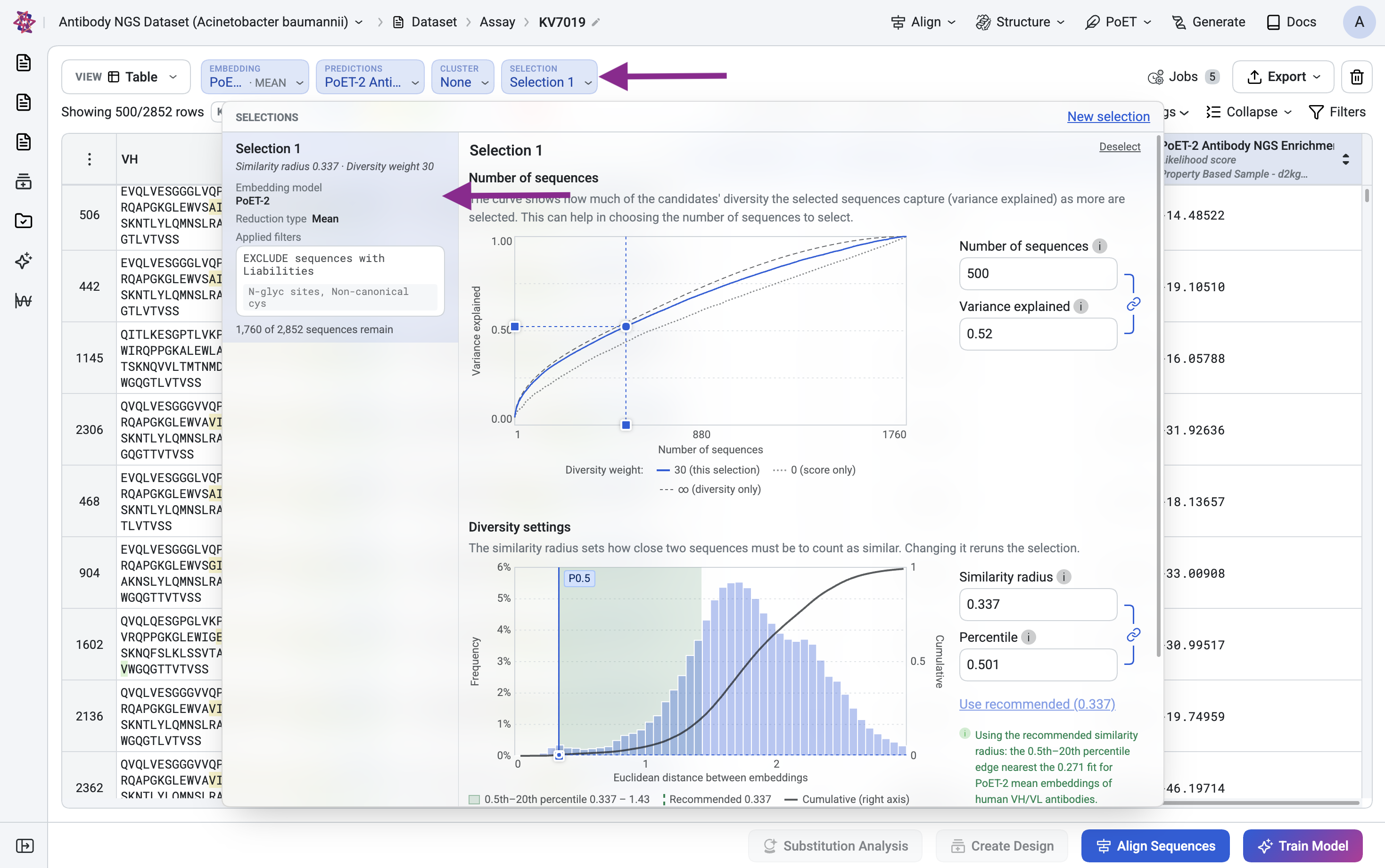
Adjust the number of sequences#
In Number of sequences, change the number to ‘550’ or drag the marker on the curve. Variance explained moves with it, and the table updates as the marker moves. The curve plots the variance explained, a measure of diversity, against the number of sequences in the selection. A variance explained of 0.55 when the number of sequences is 550 means that a selection of 550 sequences covers approximately 55% of the diversity of all the candidate sequences. Remember to change the number of sequences back to ‘500’ after exploring.
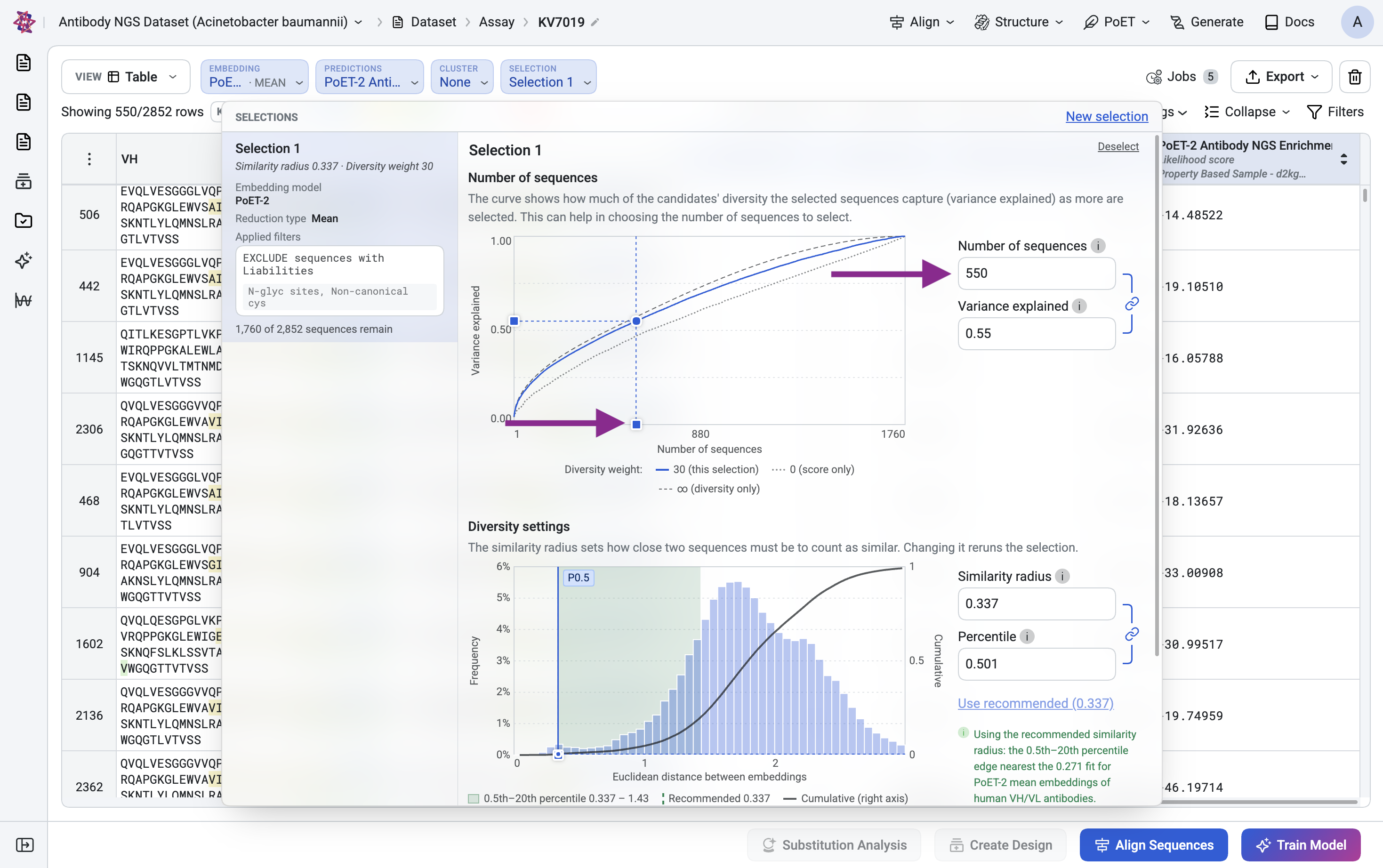
The curve shows three lines: this selection (diversity weight 30), score only (diversity weight 0), and diversity only (infinite diversity weight).
Adjust the similarity radius#
Type a ‘0.35’ in Similarity radius or drag the marker on the histogram. The Similarity radius and Percentile fields are linked. A radius of 0.35, for example, is the 0.577th percentile and sits within the 0.5th to 5th percentile band.
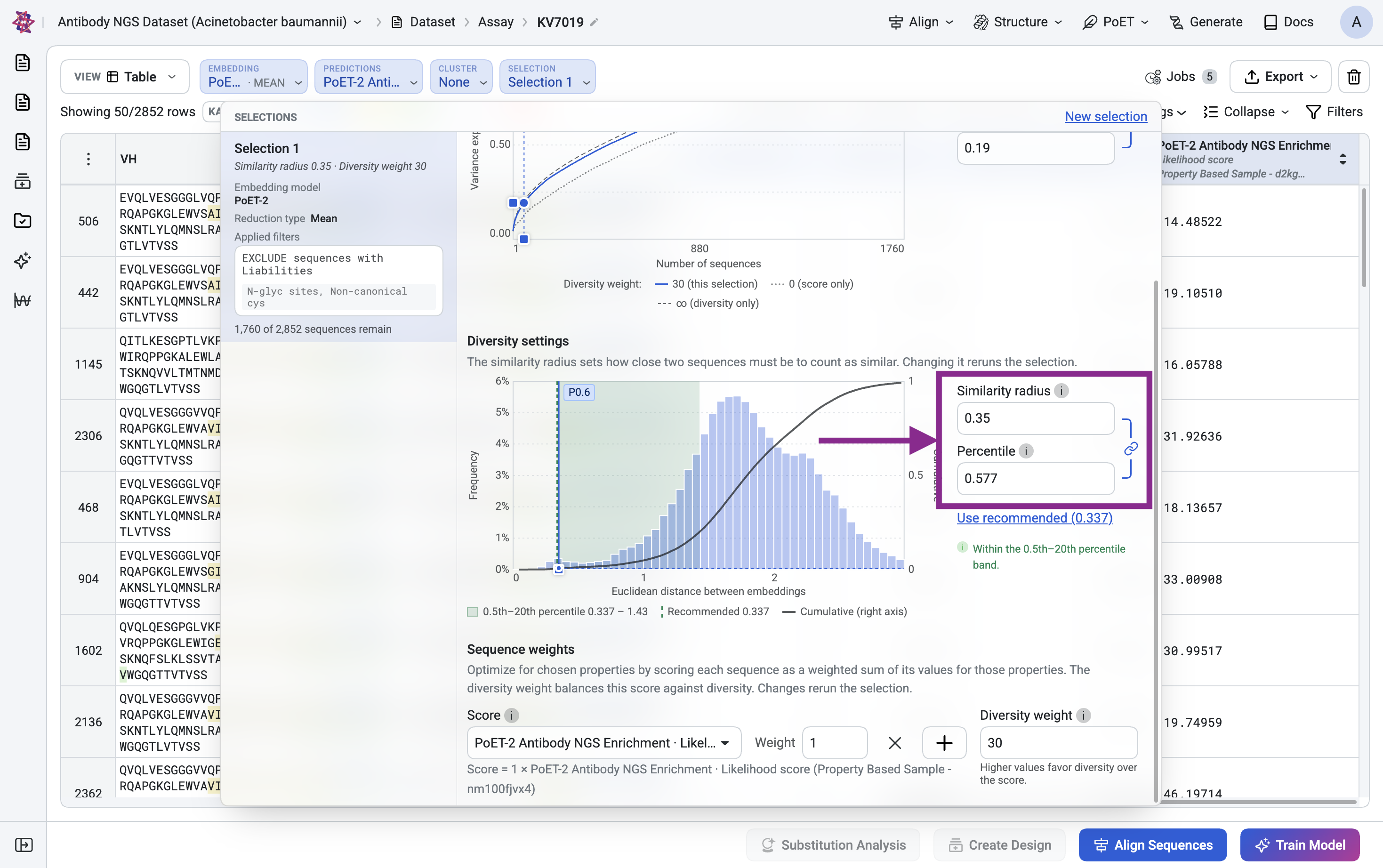
The change reruns the selection, and the fields are greyed out until it finishes.
Click Deselect at the top right of the panel to clear the selection from the table.
Step 6: Export the selection#
Export the selected sequences to use them outside the platform.
Click Export and choose Only filtered rows to CSV.
The CSV holds the rows currently shown in the table, which are the 500 selected sequences.
Summary#
In this tutorial, we have selected a diverse subset of 500 antibodies predicted to have high affinity against antimicrobial resistant A. baumannii from a pool of nearly 3,000 candidate antibodies from an antibody NGS discovery campaign. Among these 500 selections, we expect to obtain a diverse set of high affinity antibodies for further development, thereby achieving our antibody discovery goals while only assaying a small fraction of candidate antibodies.
Next steps#
Test the selected sequences in the lab, then run Design to generate a second-round library.
Run a structure prediction on the selected sequences to view their 3D structures.
References#
Baker, S., Krishna, A., Higham, S., Naydenova, P., O’Leary, S., Bartholdson Scott, J., … Reece, S. T. (2024). Exploiting human immune repertoire transgenic mice for protective monoclonal antibodies against antimicrobial resistant Acinetobacter baumannii. Nature Communications, 15(1). https://doi.org/10.1038/s41467-024-52357-8
Zhou, Q., Chomicz, D., Melvin, D., Griffiths, M., Yahiya, S., Reece, S. T., Le Pannerer, M.-M., & Krawczyk, K. (2026). KyDab – a comprehensive database of antibody discovery selection campaigns. bioRxiv. https://doi.org/10.64898/2026.03.25.713450